
Wanderburg Roof Slots and Compatible Modules
- Reviewed
- Scope
- Dated evidence; no installed-build testing
You cannot reliably solve this by buying an extra empty roof socket. The checked developer notes and player descriptions do not establish a separate button, Silver price, or progression purchase that adds another roof position to the chassis you already selected. A roof module is called a Top Module in the English material, and the number of Top slots comes from the chassis layout. Silver and unlock conditions can make additional Top-compatible modules permanently available, but they do not prove that the chassis itself gains another position.
Use that distinction as the decision rule. If the selected chassis shows one Top position, owning a second Top Module does not create a second slot. If the selected chassis shows two Top positions, both positions need compatible permanent modules before that loadout is usable. Front, Back, and Side Modules cannot fill a Top position simply because they are already unlocked or cheaper.
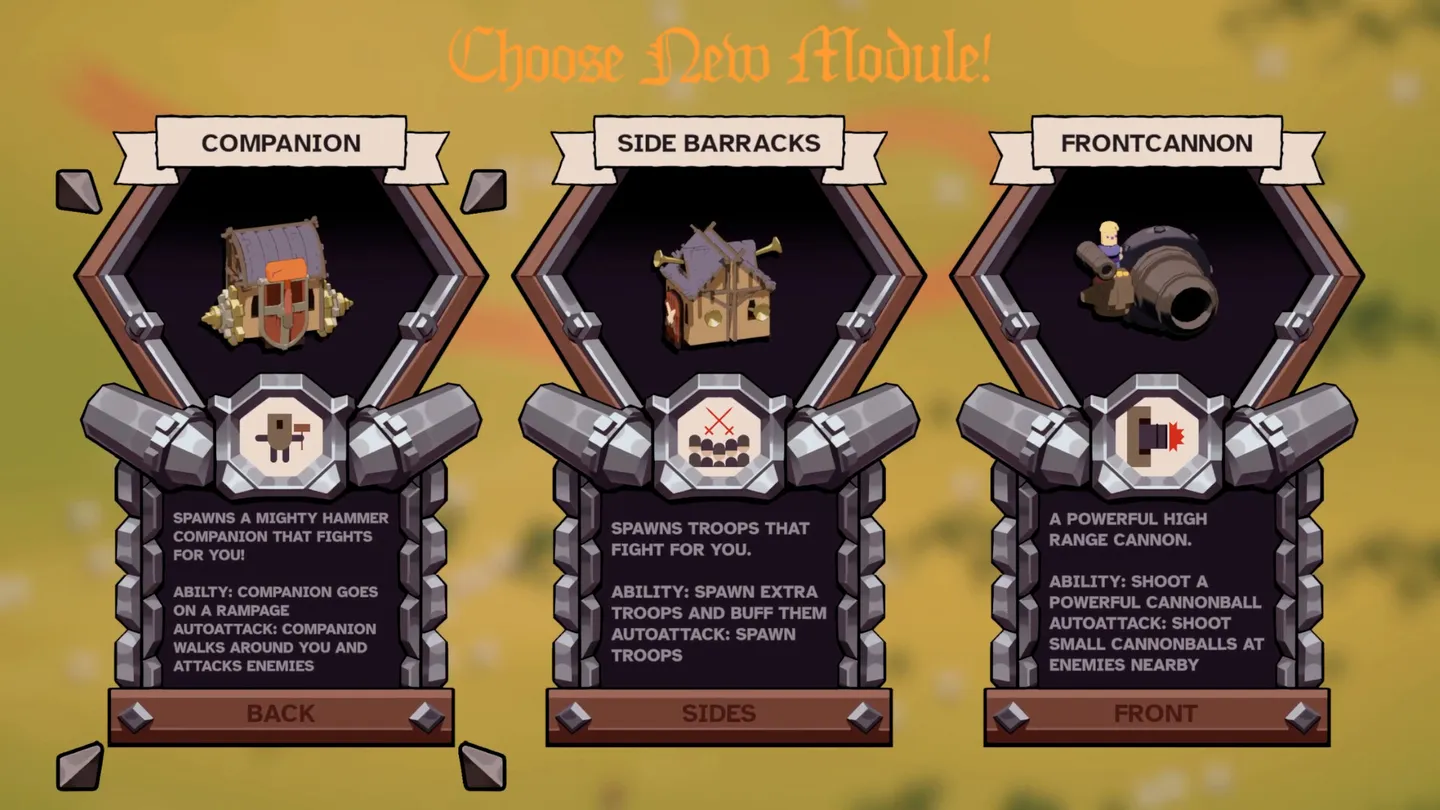
Module position labels describe compatible mounts, not an independently purchasable extra socket.
Roof slots and Top Modules are different things
The German search phrase “Dachmodul-Slot kaufen” combines two separate parts of the loadout system. Dachmodul corresponds to a Top Module: an item that can be equipped in a compatible roof position. Slot is the position provided by the chosen vehicle or chassis. The practical mistake is to treat the item and its mounting position as the same purchase.
The official game description supports a modular arsenal and says that modules and vehicles are unlocked between runs. It does not establish a universal roof-slot upgrade or a price for one. A dated September 10 community reply instead points the player toward the starting mortar and toward additional options such as Archer Tower or Fire Mage. That answer is useful for module availability, but it is a player observation, not an official statement that an empty socket can be bought.
| What you are looking at | What it controls | What it does not do |
|---|---|---|
| Chassis layout | How many Top, Front, Back, or Side positions the selected vehicle provides | It does not become wider merely because another module is owned |
| Permanent module availability | Which compatible modules can be placed into the positions the chassis already has | It does not add a new position to a one-Top chassis |
| Silver purchase | Makes a supported module available when the current progression screen offers that purchase | It is not evidence of a separate roof-slot purchase |
| Module prerequisite | Opens or advances the path for a particular module | It does not change the slot category that the module fits |
Read the loadout before spending Silver
Start from the selected chassis and its visible equipment positions. Do not start from the shop price, the name of an attractive module, or a build recommendation. The layout tells you what can actually be equipped.
- Select the chassis you intend to use. Slot counts are chassis-specific, so checking a different vehicle can answer the wrong question.
- Count only the visible Top positions. Do not count a tower-shaped module, a Side weapon, or an empty space elsewhere as a roof slot.
- Check which Top Modules are permanently available. The relevant comparison is available Top modules versus required Top positions.
- Match every required position by category. A Front, Back, or Side Module does not replace a missing Top Module.
- Only then consider a Silver purchase or prerequisite. Spend toward a module that the current Top position accepts, rather than toward the idea of creating a socket.
- Return to the same chassis after the unlock. Confirm that the new module appears as a valid choice and that every required position is filled.
Known Top-module paths
The community module guide describes three relevant Top options, but it does not support treating all three as identical purchases. Their acquisition details differ.
Top Mortar
Top Mortar is listed as unlocked by default. The September 10 community reply also says that the mortar is available at the beginning. This makes it the first module to check when one roof position is unexpectedly empty. If Top Mortar is already equipped, it accounts for one Top position; it does not unlock or buy another position.
Fire Mage
A structured module list gives Fire Mage a cost of 2,000 Silver, and the dated community reply also identifies Fire Mage as an expansion that can be bought for Silver. This is the clearest supported example of buying another Top-compatible module rather than buying a Top slot.
The price comes from the community module guide, not from an official patch note. Check the current progression screen before paying, especially while Wanderburg remains in Early Access.
Archer Tower
The structured module list gives Archer Tower a prerequisite: upgrade Archer Crew to Level 5. The September 10 player reply groups Archer Tower among expansions that can be bought for Silver, but the community module guide does not provide a reliable Silver price for it. Do not invent one or assume that reaching the crew level automatically completes every later purchase step.
The supported action is to meet the stated Archer Crew prerequisite, then read the current in-game prompt. If it presents a further purchase, follow the displayed requirement. If it does not, do not spend Silver elsewhere expecting the roof position itself to appear.
What Silver changes and what it leaves alone
Silver belongs to permanent progression in the community module guide. Some modules have a stated cost, while others first have a gameplay prerequisite. The exact sequence is not identical for every module.
For this roof-slot problem, Silver can change the selection of modules available to fill Top positions. The community guide does not show it changing the number of Top positions on the selected chassis.
That prevents three wasteful decisions:
- Do not buy a Front, Back, or Side option to solve an empty Top position.
- Do not buy a second Top option expecting a one-Top chassis to grow another roof socket.
- Do not spend toward unrelated permanent choices when the immediate blocker is that a two-Top layout lacks a second compatible module.
This is a narrow compatibility decision, not a general recommendation to prioritize one module across the whole account. The best permanent purchase depends on the chassis and modules already available. Silver farming methods and broad unlock order belong to other tasks.
Diagnose the blocker before buying anything
Use the state that matches the current loadout.
The chassis shows one Top position
There is no verified purchase path in the checked developer notes or community guide that adds a second Top position to that chassis. Another Top Module would widen the available choices for the existing position, but it would not create new capacity. If the goal is specifically to equip two Top Modules at once, the relevant variable is a chassis whose layout already includes two Top positions.
The chassis shows two Top positions and one is empty
The likely blocker is module inventory. Count permanently usable Top Modules, not every module owned. Top Mortar can cover one position. Another compatible Top option must be available for the remaining position. Fire Mage or Archer Tower may provide that option once their supported purchase or prerequisite conditions are satisfied.
The recorded two-Top example is Spiderburg, but its unlock route is deliberately outside this page. Once that chassis is already present on the loadout screen, the useful check here is simply whether both Top positions can be filled. Repeating its unrelated progression route does not purchase a roof slot.
The module is unlocked but does not appear as a Top choice
First confirm the category. A module name or tower-like appearance is not enough if the game classifies it for another position. Then distinguish meeting a prerequisite from completing a Silver purchase. The module list says many modules remain locked until a condition is completed and may then require Silver before they become available in runs.
Do not fill gaps in that sequence from memory. Read the current prompt for the named module. The community guide gives no universal price and no universal “buy all roof modules” step.
Both Top positions are filled but the run still cannot start
Stop treating the roof as the only possible blocker. Check the remaining positions required by that same chassis and make sure each is filled with the matching category. Chassis layouts can trade one slot category for another, so a loadout copied from a different vehicle may no longer be legal even when its Top positions are complete.
These starting-loadout checks are separate from module choices during a run. A recorded Spiderburg run explicitly described equipping two mortars of the same type later in the run. That observation does not prove that every initial selection screen permits duplicate choices. Follow the current starting screen for launch eligibility and the mid-run offer for later equipment; do not infer a universal requirement for two different module types.
Chassis choice determines roof capacity
Vehicles are part of Wanderburg’s between-run unlock system, and their modular layouts can open different strategies. That does not mean every vehicle is an upgrade to the same slot grid. A chassis can gain a position in one category while lacking a position used by another chassis.
For the documented two-Top case, both roof positions need compatible permanent modules. A loadout copied from another chassis can therefore produce two opposite problems: an unfilled Top requirement and an owned module that has nowhere compatible to go.
Treat the chassis as the frame and modules as the pieces that fit that frame. Permanent progression expands the piece selection. It does not make all frames accept all pieces, and the checked developer notes do not show an à-la-carte socket purchase that modifies a frame.
Complete the purchase safely
Use this final sequence:
- Open the permanent loadout and select the intended chassis.
- Record how many Top positions that chassis actually shows.
- Count the permanently available modules classified for Top positions.
- If the chassis has only one Top position, stop looking for a supported second-slot purchase.
- If it has two Top positions but only one usable Top Module, choose a supported module path: check the default Top Mortar, the reported 2,000-Silver Fire Mage purchase, or the Archer Crew Level 5 prerequisite for Archer Tower.
- Confirm the current in-game requirement before spending, because Wanderburg is in Early Access and the Silver details above are not presented as an official current-price guarantee.
- Equip the new Top-compatible module in the empty Top position.
- Check every other required chassis position before starting the run.
The official news checked on October 9 include Hotfix 0.9.14, published September 21, while the roof-slot community answer is dated September 10. Neither those official notes nor that player exchange establishes a separate roof-slot price. The practical next step is therefore to verify the chassis count, fill its existing Top positions with compatible permanent modules, and spend Silver only when the game presents a supported module purchase—not to search for an unverified extra-socket button.