
Wanderburg Save File Disappeared: Backup-Safe Recovery Checks
- Reviewed
- Scope
- Dated evidence; no installed-build testing
If your Wanderburg save file disappeared, stop launching the game on every connected device before doing anything else. Steam currently lists Wanderburg as supporting Steam Cloud, but an “up to date” status does not prove that the cloud contains your newest progress. It can also mean that Steam successfully synchronized an older or reset copy.
Do not delete files, reinstall the game, verify local files, or choose a side in a Cloud conflict yet. First preserve the current files from every PC or Steam Deck that has run Wanderburg. There is no confirmed Wanderburg-specific save-file path, guaranteed recovery method, identified root cause, or official developer fix in the checked developer updates and player reports, so the safest approach is to preserve evidence before testing possible recovery paths.
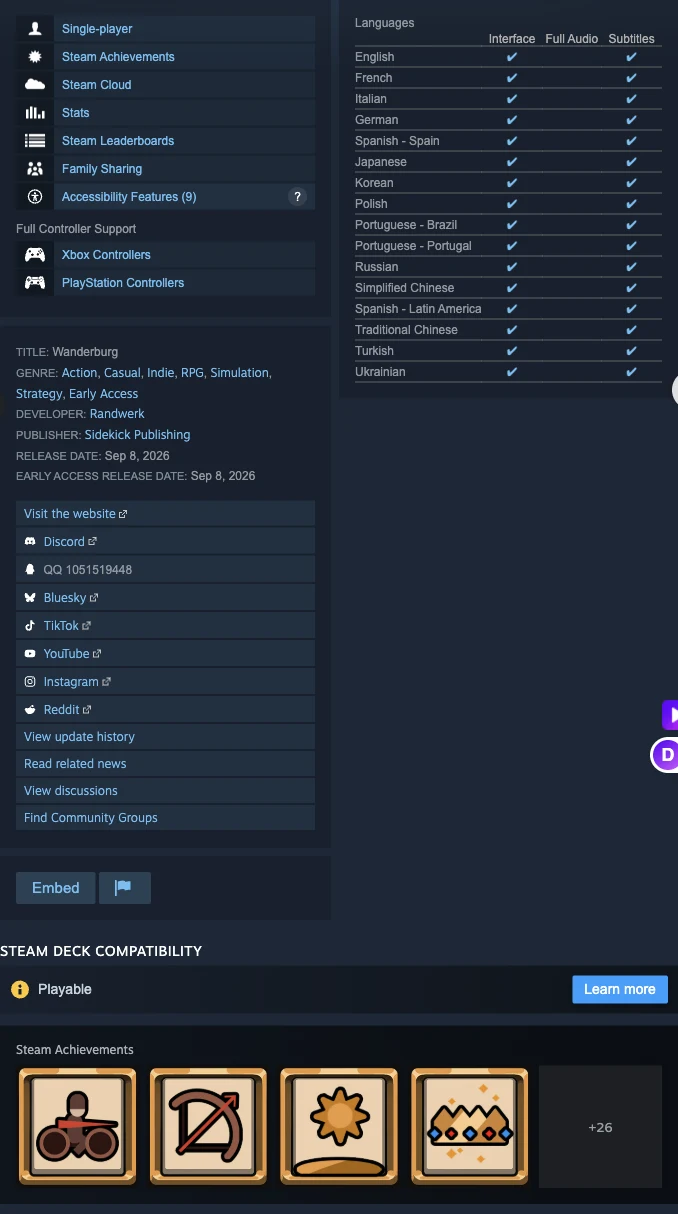
The store lists Steam Cloud for Wanderburg. Feature support does not prove which save revision is recoverable.
Freeze synchronization before investigating
Treat each computer or Steam Deck as a separate possible source of the last good progress. A device that has not opened Wanderburg since the loss was noticed may still hold a useful local copy. Launching the game or allowing another automatic synchronization could change that copy.
- Close Wanderburg on all devices.
- Do not launch it again simply to check whether the progress returns.
- Disconnect the device most likely to contain the newest progress from the network before opening Steam again.
- Exit Steam completely if it is still running.
- Preserve the relevant Steam data and Cloud log before changing, replacing, or deleting anything.
- Keep the original folders untouched. Perform comparisons only with duplicated copies.
If Steam presents a Cloud conflict, do not select a version based only on the words “local” or “cloud.” Record the displayed dates and times, photograph or capture the conflict window, and cancel or close it if possible until backups exist. Steam’s general guidance says the most recently modified version is usually the desired one, but the correct choice depends on when and where your real progress was last present. A newer file can still represent a reset state.
What the current evidence establishes
Wanderburg’s Steam store listing includes Steam Cloud and identifies the game with App ID 3624140. The same listing describes a Save Anytime accessibility feature, but that does not establish which files contain permanent progression or exactly when those files are written and synchronized.
Dated player reports show a recognizable failure pattern, but they do not prove one universal cause. On September 14, 2026, one player reported moving from PC to Steam Deck and then losing data on both systems. On September 15, another reported starting on Steam Deck, continuing later on PC, and finding progress essentially gone even though Cloud Sync said it was current. A September 29 report described four hours of progress disappearing after returning to the game.
Those are individual player observations, not an official diagnosis. One player also said the developers were aware of the issue, but the checked developer updates contain no matching official statement confirming that claim. The official September 21 Hotfix 0.9.14 announcement mentions general stability improvements and other changes, not a confirmed save-loss repair. The September 30 Early Access roadmap announcement likewise does not establish a recovery method.
Steam’s official Cloud documentation provides the reliable general boundary: synchronization is automated; a successful status can reflect an older version being uploaded; progress may remain on the previous machine if it failed to synchronize; and Steam Support is generally unable to recover lost saves or resolve Cloud conflicts for the player.
Make a backup from every device
Steam documents default local Cloud-data roots, but it also states that developers choose which files and settings a game uploads. Therefore, the following locations are inspection targets, not a confirmed Wanderburg save path.
On a default Windows installation, begin at:
C:\Program Files (x86)\Steam\userdata
On Steam Deck or another Linux installation, begin at:
~/.local/share/Steam/userdata
Inside userdata, each numbered top-level folder corresponds to a Steam account that has logged in on that machine. Wanderburg’s App ID is 3624140, so look inside the relevant account folder for a 3624140 folder. Its presence makes it useful to preserve, but it does not by itself prove that every Wanderburg progression file is stored there.
For each device:
- Copy the entire relevant
3624140folder to a location outside the Steam directory. - If more than one numbered Steam-account folder exists, preserve each matching
3624140folder rather than guessing which account is correct. - Give the copied folder a label that records the device and backup time, such as “PC-before-recovery” or “Deck-before-recovery.”
- Preserve file names, folder structure, sizes, and modification times.
- Do not move the originals and do not merge the PC and Deck folders.
Also copy Steam’s cloud_log.txt. Steam documents its default location as C:\Program Files (x86)\Steam\logs on Windows and ~/.local/share/Steam/logs on Linux. The log records when files are written to or retrieved from Steam Cloud. It may help establish the order of events, although it does not guarantee that a particular uploaded version contains the desired progress.
Compare the PC and Steam Deck evidence
Once both devices have independent backups, compare the copies without editing them. The goal is to identify which device is the strongest candidate for the last good state, not to force two folders together.
Record these facts for each candidate copy:
| Evidence | What to record | How to use it |
|---|---|---|
| Device | PC or Steam Deck | Identifies where the copy originated |
| Steam account folder | The numbered parent folder | Prevents comparing data from different accounts |
| Folder contents | File names, subfolders, and sizes | Reveals whether the two copies materially differ |
| Modification times | Exact local date and time | Compare them with the last session that definitely retained progress |
| Cloud log activity | Upload or retrieval activity near the incident | Helps reconstruct which device synchronized and when |
| Last known good session | Device, approximate end time, and online or Offline Mode status | Provides context for selecting a candidate |
Do not assume the folder with the newest timestamp is correct. Match times against actual play: which device showed the missing unlocks or progress, which device last displayed the complete state, and whether that session ended while Steam was connected. Steam warns that Offline Mode prevents synchronization until the client returns online and can create a conflict later.
A meaningful difference between the two backups is useful evidence. Identical folders after both devices synchronized may indicate that the same state has already reached both machines, but the Steam support guidance does not provide a way to determine whether an earlier Wanderburg-specific revision remains recoverable.
Test the strongest local candidate without risking the other copy
Stop here if the actual Wanderburg save files have not been identified and fully backed up. Copying Steam’s userdata or Cloud cache is not proof that it contains the game’s complete progression. Keep any device with useful progress offline and avoid launching a candidate until the developer or the actual Cloud file listing confirms which files hold that progress. This guide does not establish a Wanderburg-specific save path.
If one device has not synchronized since its last known good session, keep it offline until its folders and Cloud log have been copied. Before any test launch, confirm the actual Wanderburg progression files with the developer or a game-specific file listing and preserve complete copies. The userdata folder is a Cloud inspection target, not proof that every local save has been backed up. If the actual files remain unidentified, keep the candidate offline and stop here rather than risking a test launch with only a cache copy. Once that complete backup is secure, use Steam’s per-game control to prevent another automatic Cloud exchange before opening Wanderburg: in the Steam Library, right-click Wanderburg, open Properties, select General, and turn off its Cloud Synchronization setting.
Only after the actual progression files are identified and backed up, launch the game on that candidate device and inspect the progression state. Do not test both devices at once. If the expected progress appears, close the game normally and make a second, separately named backup because launching or closing may update files. Do not immediately copy unidentified files over the other installation; the official Steam support guidance does not identify which Wanderburg files are safe to transfer manually.
If the candidate also shows the reset state, stop further experiments with the originals. Keep the pre-test backup and the post-test state separate. Repeated launches are unlikely to clarify which copy was correct and may produce more writes with later timestamps.
When no device retains the missing progress, recovery may not be possible. Steam’s official guidance says lost saves are unlikely to be recoverable by Steam Support, and it specifically notes that Support cannot recover lost saves or resolve Cloud conflicts. That limitation is a reason to preserve evidence and report the incident, not a reason to delete the remaining data.
Re-enable Steam Cloud only after choosing a trusted state
Before reconnecting a recovered device, confirm that you have at least one untouched backup of the state you intend to keep. Enable Cloud for only one device first. If Steam displays a conflict, compare the conflict-window timestamps with your recorded last good session and backed-up files. Do not choose “cloud” merely because it sounds safer, and do not choose “local” merely because the local test looked promising without checking the time and device.
Allow the selected device to finish synchronization before starting Wanderburg elsewhere. On the second device, wait for Steam to complete its sync and then verify the game state. If Steam reports that it cannot synchronize, address that failure before launching; Steam warns that ignoring a sync error and selecting Play can create a conflict and cause lost data or progress.
If the recovered state matters more than immediate cross-device play, keep the second device’s Cloud synchronization disabled until you have confirmed that the first device still opens with the correct progress after its sync.
Report the incident with evidence developers can use
Because no official root cause is established, a useful report should describe the sequence rather than assert that Steam Deck, PC, or Steam Cloud definitely caused the loss. Include:
- Whether play began on PC or Steam Deck.
- The order in which the devices were used.
- The approximate date and time of the last session with intact progress.
- Whether either session used Offline Mode.
- What Steam displayed before each launch, including “up to date,” a sync error, or a conflict window.
- Whether both devices now show the same missing state.
- The folder modification times and relevant Cloud-log timing you preserved.
- Whether the loss occurred before or after an update.
- That the game is Wanderburg, App ID 3624140.
Do not post personal Steam-account identifiers or upload an entire userdata directory publicly. Keep the full backups private unless the developer gives a specific, trusted request for particular files.
For future PC-to-Deck switches, close Wanderburg, wait for Steam to finish synchronization, and resolve any sync error before opening the game on the next device. Maintain periodic copies outside Steam’s managed folders. The immediate priority is simple: preserve every current copy, identify the device that last held good progress, test only that candidate with Cloud disabled, and reconnect devices one at a time.